
Ever felt limited by the base Station UI? The top half taking too much space? having to constantly be moving between its tabs? Fret no moar! Introducing! the Barn way!
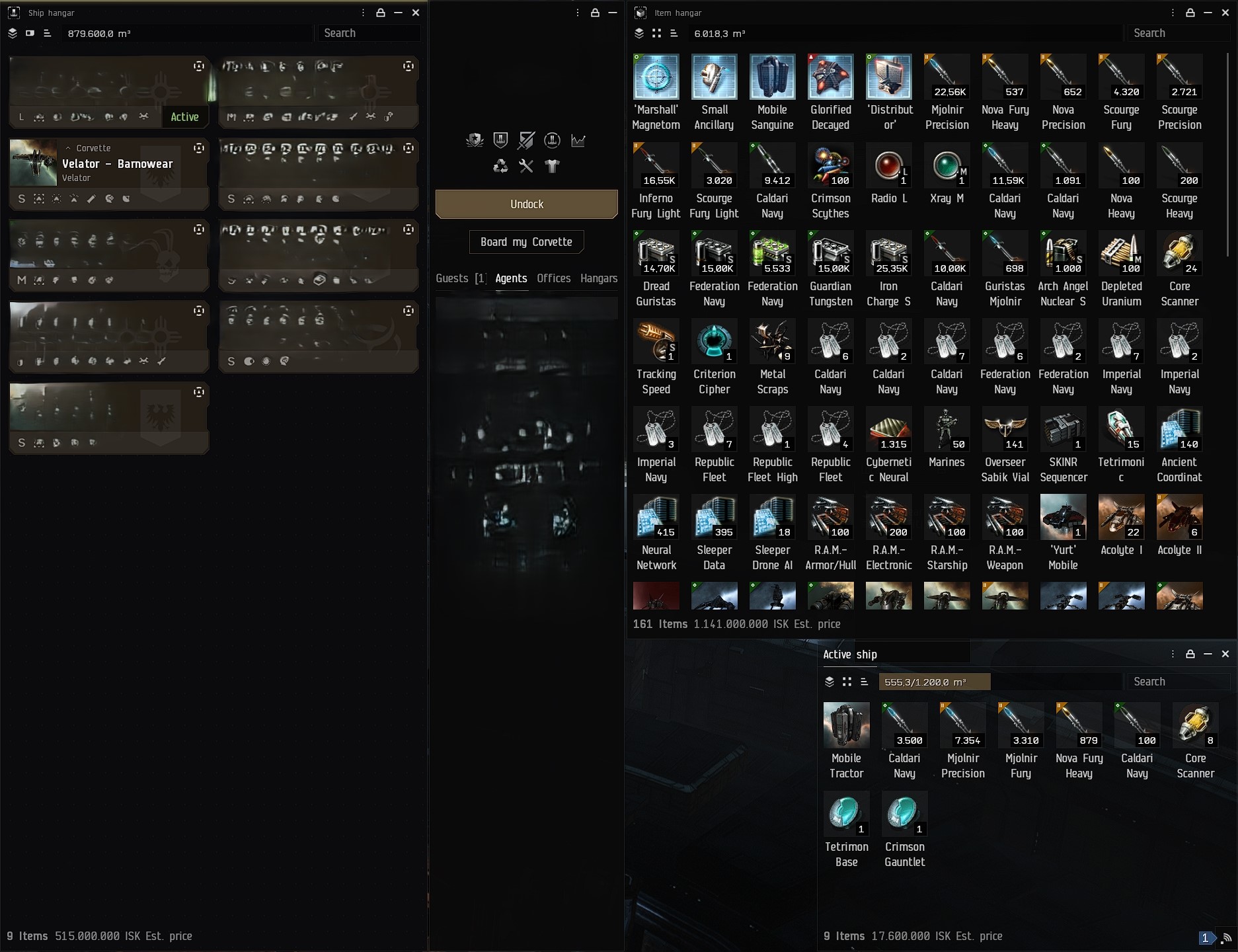
This is what you're going to get, note that i'm not showing the whole screen, just the UI part.
Don't mind the censored areas. I'm warning you * _*
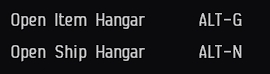
To find and set the hotkeys for those 2 hangars even if just temporarily, go to settings, shortcuts, click any of the sections and on the filter checkbox you can write their names.
As you can see, you have vision of much more inventory, the station item and ship hangars, plus the Station default ui if you still wanna click things in it, like Agents, and services. Remember to lock all windows after you're done with the placement and resizing.
"But wait, wont this cover my whole screen while in space?" i hear you ask? nop, all those 3 big windows belong to the station UI only.
If your hangars, or even your ship's inventory are still showing the default sidebar, click the 3 dots icon on the top right of the windows and toggle off the "show sidebar" option. I recommend toggling on the "Always open separate" as well as checking the other options available if they interest you.
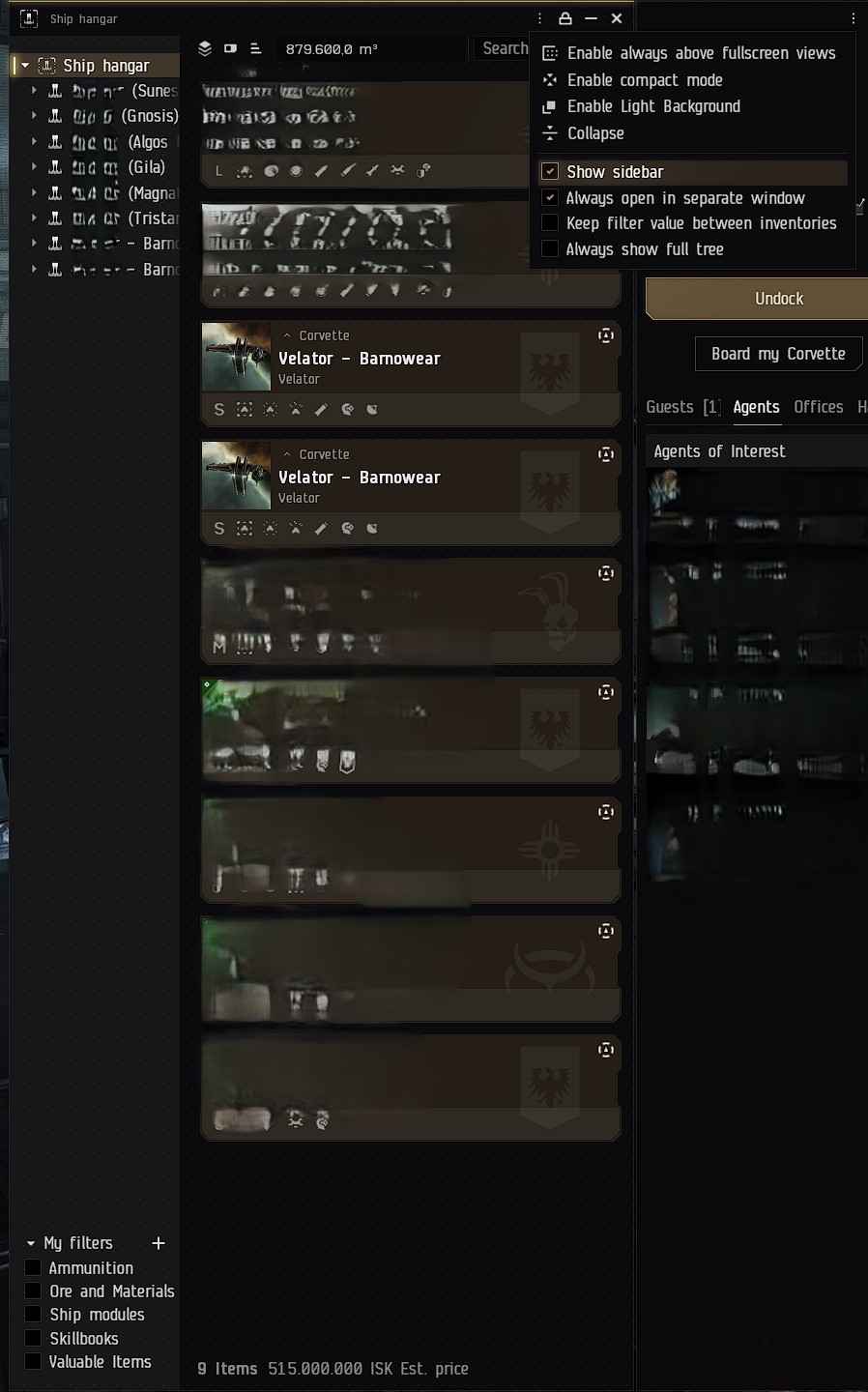
Since you're learning new things or are curious you may be wondering how i made my ship hangar look so "Rad", well here's how, on the top left of the window there's these 3 icons, first one stacks all, second is view mode and third is sorting, you can do 2 of them with right click in the window, but not the view mode. I chose cards as they give me much more information about the ships and tell me which one i'm flying ATM, plus, you only need to click on the stick-man that appears when you hover over a ship to board it, or straight double click, but wait! there's more! Once inside the ship, the stick-man transforms into a stick ship that opens the fitting window on click or double click card, Kewl isn't it?..and that ain't all! If you hover the cursor over the top right circular icon of a card you can literally see a compact fitting description of the ship, including empty slots and loaded charges! No cargo tho, and sadly no export, unfit/fit, unload non-favorite cargo, or other useful options like "Leave ship", CCPLEASE!
Less useful but still neat, you can hover over the low icons for some info on the ship's properties and there's a banner with the ship's faction.
To make a double column of ships you just need to make their hangar window wide enough, its automatic.
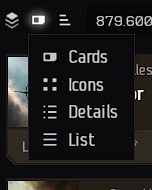
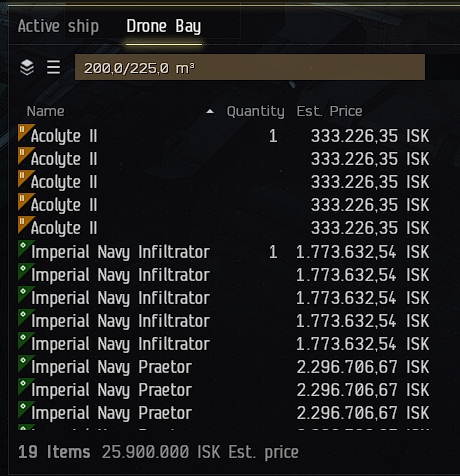
Speaking of the obscure view mode sub-menu, its worth noting that this option is per window and not for the whole ui, whats that means? well, it means you can finally have an easy way to check how many drones you have left in your ship. I only wish they were displayed in a single line with the total quantity on the side, and on parenthesis the number of packaged ones, for example: Acolyte II 10 (5)
Imperial Navy Infiltrator 5 (0)
Imperial Navy Praetor 4 (0)
Its something.
By the way since you're improving your Hangar game, i'd hotkey the "open drone/mineral/escape/etc bay" with a modifier and a dedicated mouse button you wont click by mistake. I use ctrl/alt/shift + dedicated mouse button. Once you go mouse, you wont go back. Seems like Molineux was right about one thing in the end.
"But HOLUP BARNNNN! i like to see my ship when i'm docked, i'm that kinda ACD(H)C guy/gal, i roll that way." Say no moar, i got chú homes!
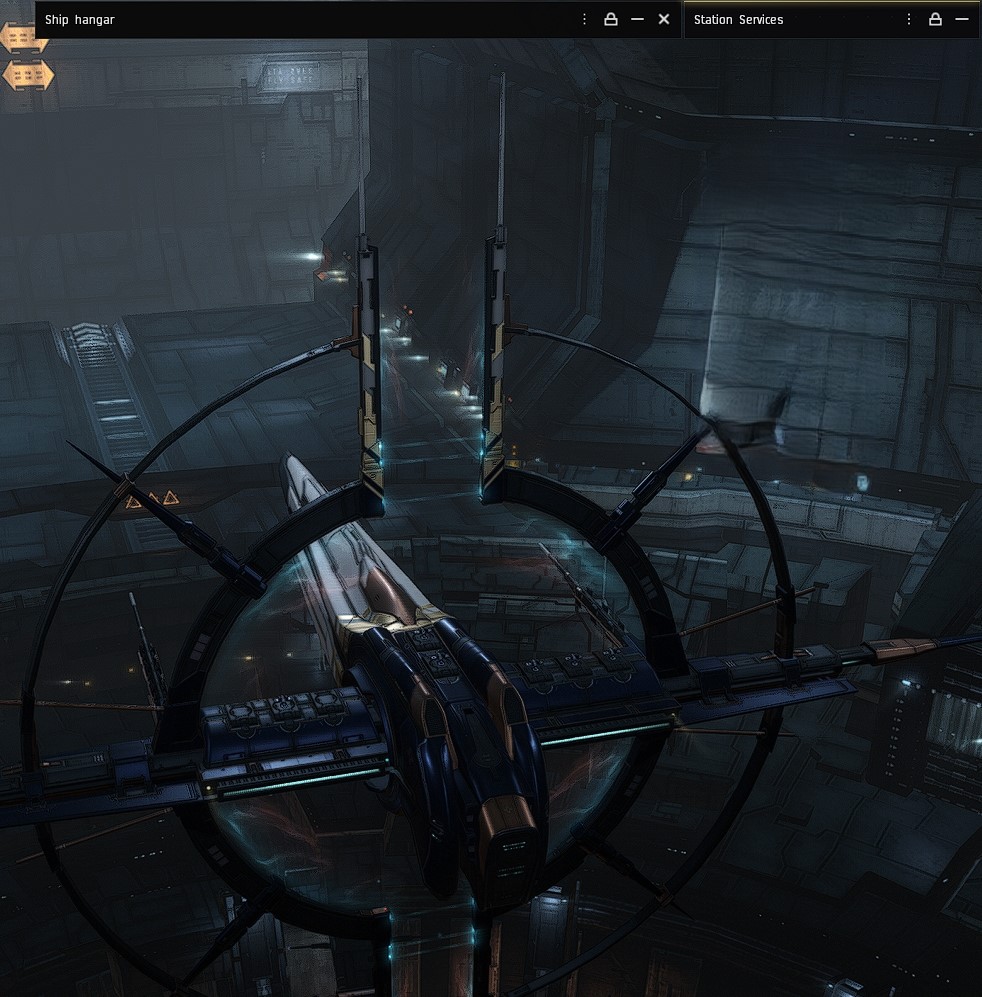
If you pay attention to the top of the picture, you see i have not closed those 2 windows, i've just smacked them into smurf mode. How? double click on their headers! But the best part is, its static between docks, they will remain in the same state until you expand them again!
BTW, to open your active ship inventory you just double click on the station, outside of UI windows, in space you can do the same on your own ship or click the inventory icon by the HUD if you haven't hidden those icons. And BTW if you right click on said icon, you can select which inventory it will track, so you'll get the sound alert when its almost full, its useful for miners. "You mine? lul."
GG no RE!
Community discussion
Comments
No comments yet. Start the conversation.
Log in to add a comment.